Check progress when a book is still generating
See what Scrively is working on and return to your saved draft without starting another book.
In this guide
Prefer to read? Let’s walk through it.
Everything you need, one clear step at a time.
1Read the progress indicators
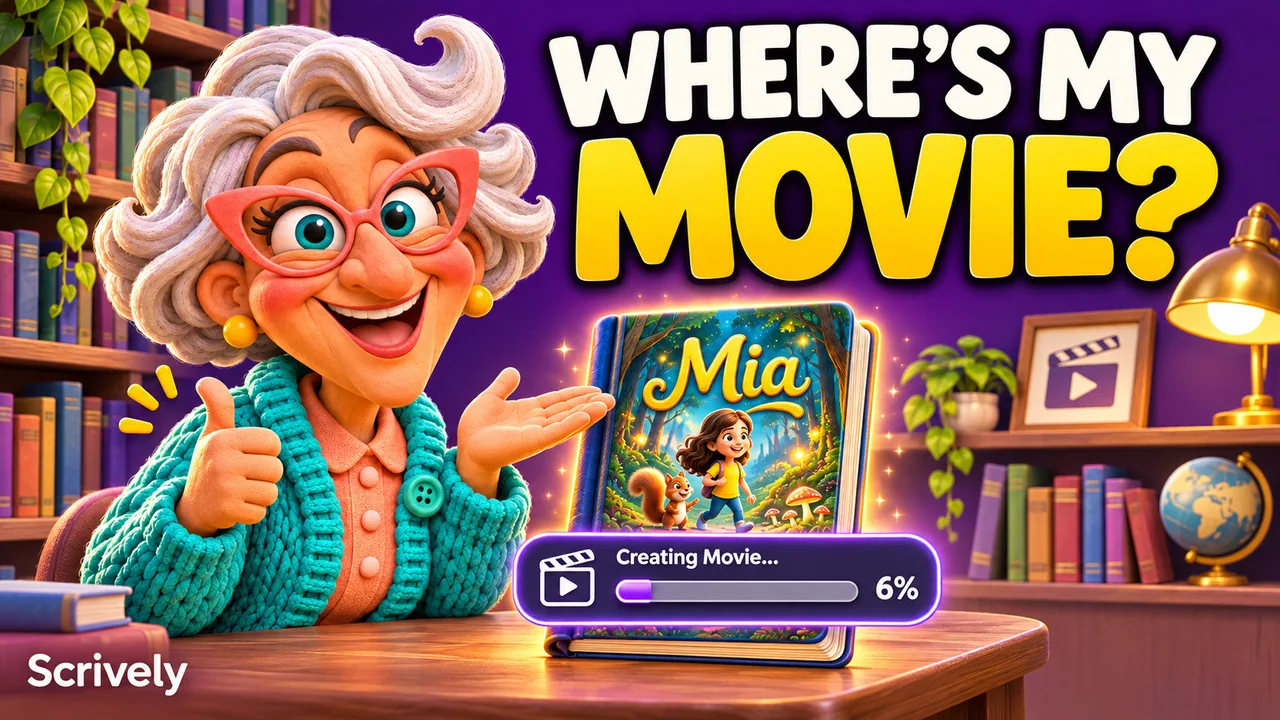
Look at the current stage and the illustrations-ready counter. A book moves through work such as portraits, story, cover, and page illustrations. If the counter or stage is changing, generation is still making progress.
2Resume the existing draft
If you have left the creation screen, open My Library and find the unfinished book. Choose Continue to return to its current step or progress screen. Use the existing draft so you can pick up the work already completed.
3Use recovery options or ask for help
If Scrively offers a Retry control, use that option for the affected job. If you still cannot continue, contact support with the book title and the exact error or stage shown. Those details help the team locate the problem.
You’re ready for the next chapter.
Try it in your own book, or explore another guide below.