Personalize a story template with your child
Choose a ready-made adventure and make your child part of the story.
In this guide
Prefer to read? Let’s walk through it.
Everything you need, one clear step at a time.
1Find a story you like
Open Story Library and browse the available templates. Use search, filters, or sorting to narrow the choices. Preview the cover and a few pages so you know the kind of story you are choosing. Select Personalize It and review the credit notice.
2Choose who your child replaces
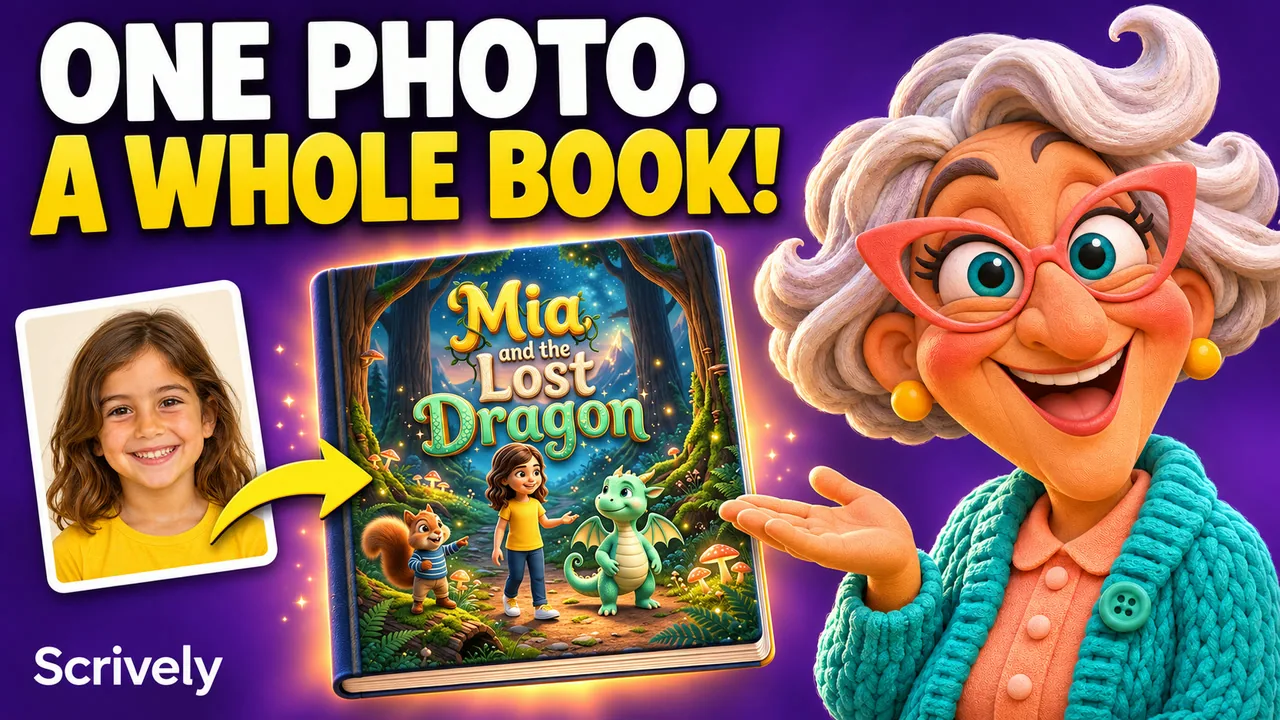
In the personalization options, choose the character to replace. You can keep the other characters from the template. Upload your child's photo, adjust the crop, and save it. Enter their name, then check the replacement summary before continuing.
3Create and check your personalized version
Choose Redraw Book. Add a dedication if you would like one, or skip it. When the book is ready, read the cover and several pages to check the new name and artwork. Open Perfect Your Book if you want to make changes.
You’re ready for the next chapter.
Try it in your own book, or explore another guide below.