Upload a character photo from your phone
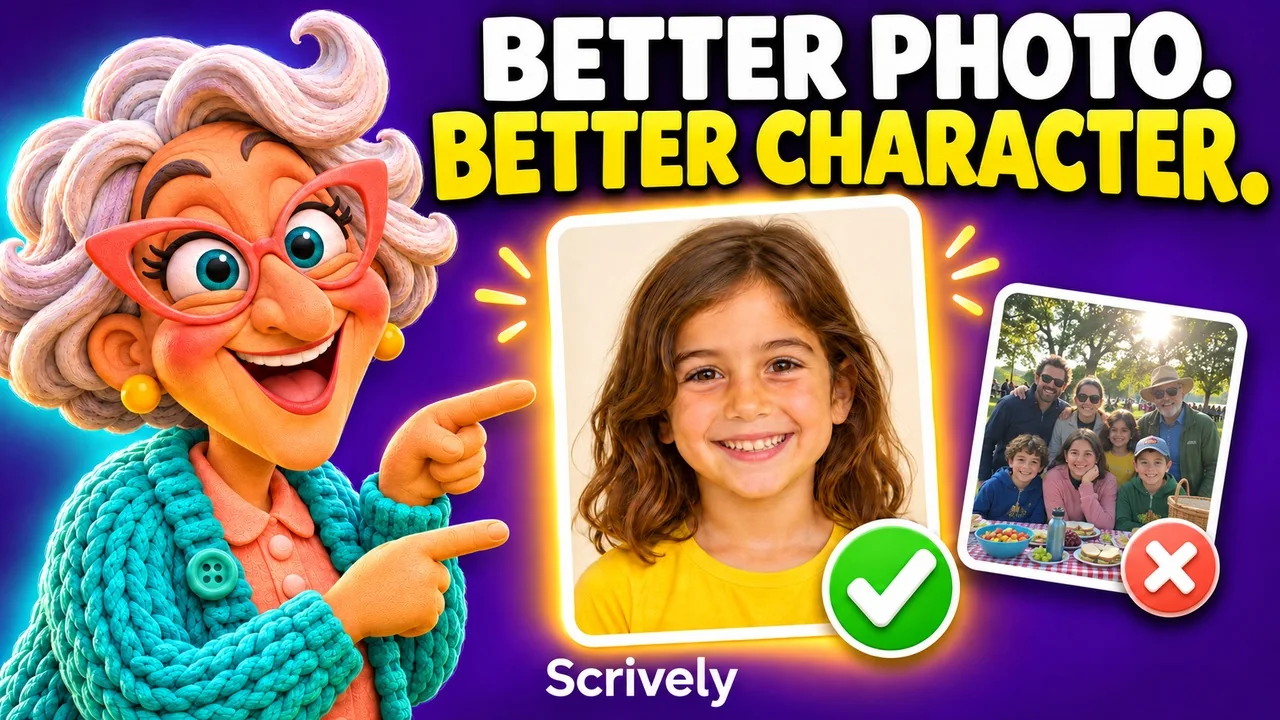
Choose a clear image, check the crop, and confirm the person before adding their name.
Follow along at your own pace.Watch on YouTube
Prefer to read? Let’s walk through it.
Everything you need, one clear step at a time.
1Pick a clear photo from your device
Open Quick Kid Book on your phone and tap Add a photo. Use your device's picker to select an image you have permission to use, with one clearly visible face and good lighting.
2Check and save the crop
Back in the builder, keep the full face within the crop and confirm that it is the intended person. Save and inspect the photo preview before entering the name. Use the change-photo option if you selected the wrong image.
You’re ready for the next chapter.
Try it in your own book, or explore another guide below.