Upload and crop a character photo
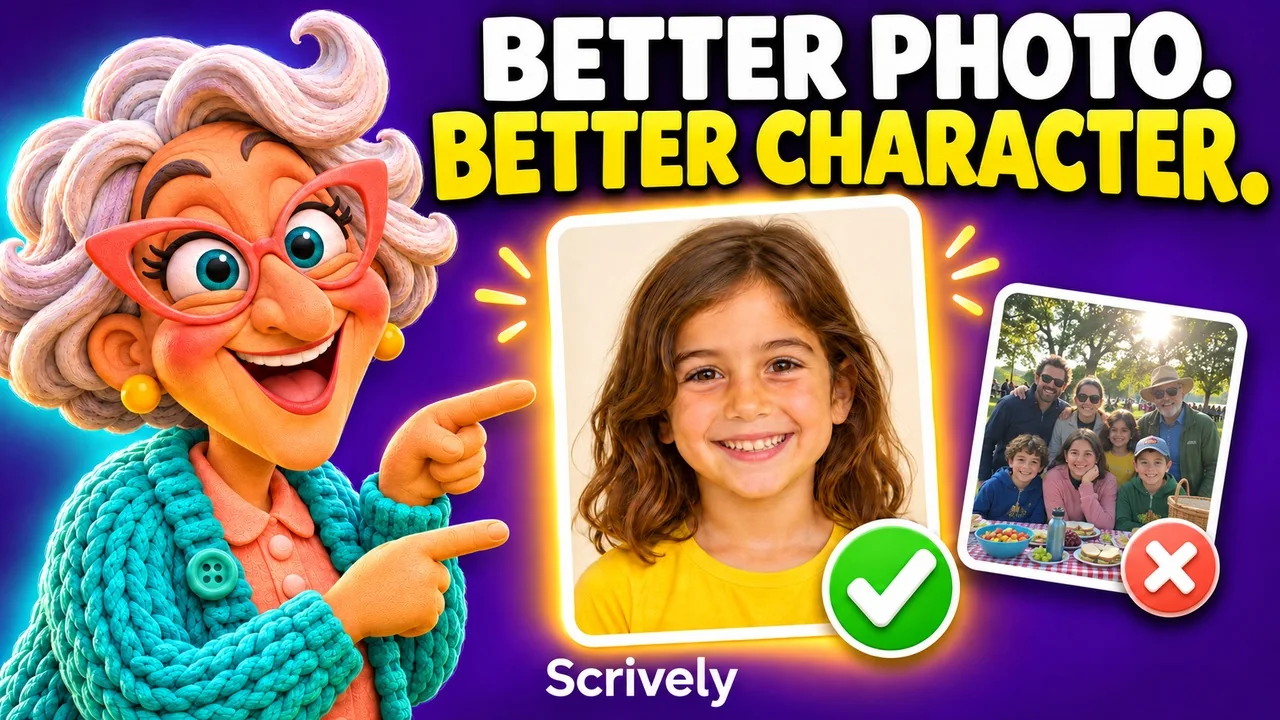
Frame the right person clearly before you start making the book.
Follow along at your own pace.Watch on YouTube
Prefer to read? Let’s walk through it.
Everything you need, one clear step at a time.
1Choose and frame the photo
In Quick Kid Book, select Choose a photo and pick your image. In Crop Image, keep the face near the center. Use plus to move closer, leaving the chin and top of the head visible. Use minus or Reset crop if the view becomes too tight.
2Save and check the chosen person
Select Save and allow the photo check to finish. Inspect the photo that appears in the form. If the person or framing is wrong, use Change photo and try again. Enter the character's name and check the spelling before moving on.
You’re ready for the next chapter.
Try it in your own book, or explore another guide below.