Preview and choose an art style
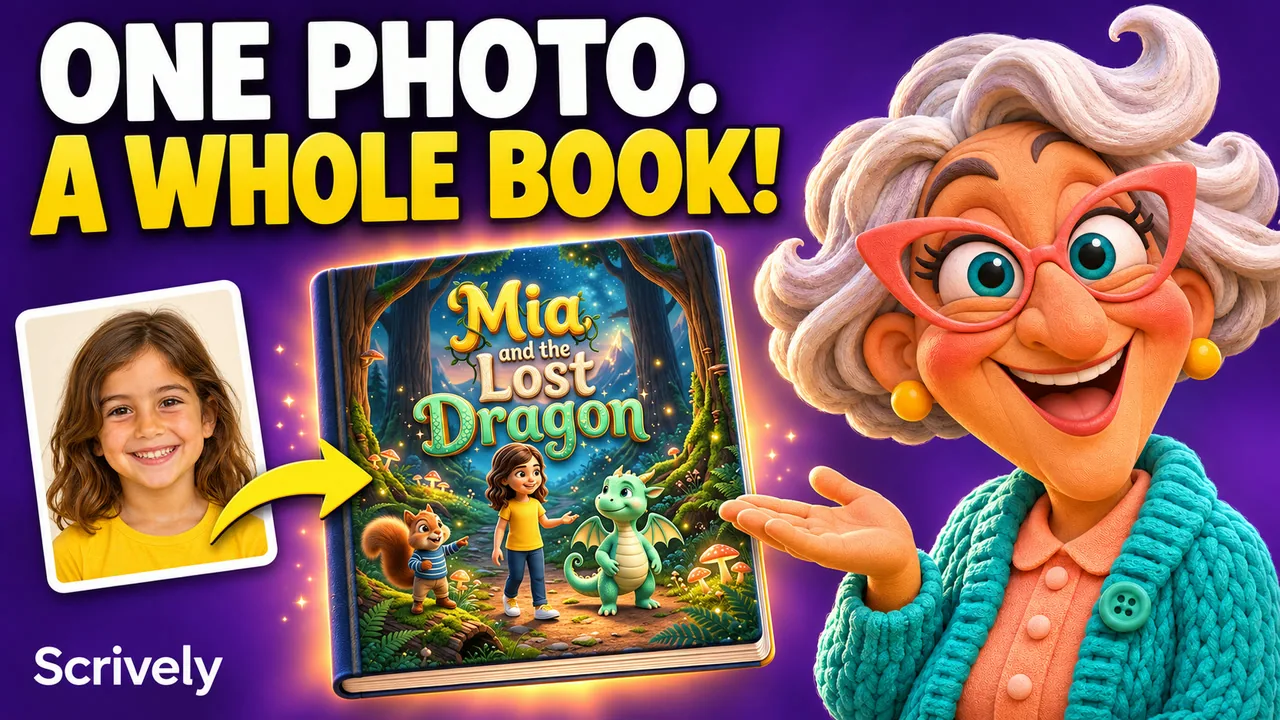
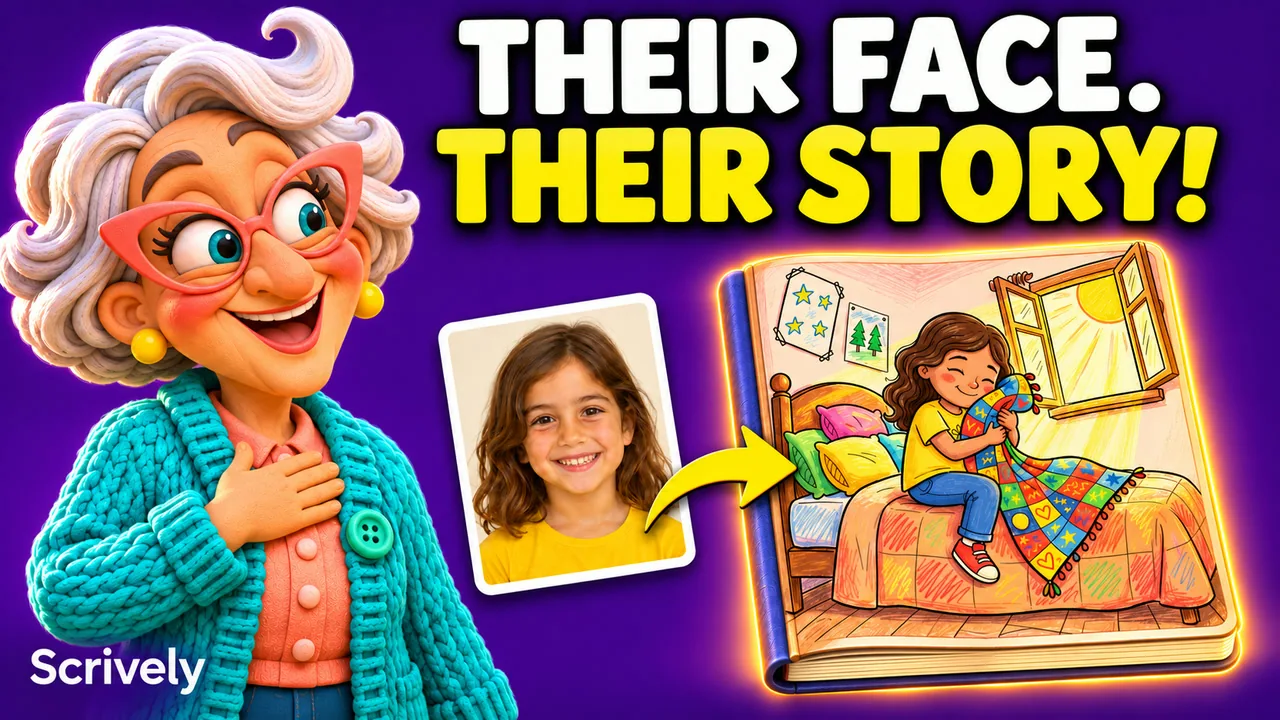
Look inside the sample books and find the visual style that suits your story.
Follow along at your own pace.Watch on YouTube
In this guide
Prefer to read? Let’s walk through it.
Everything you need, one clear step at a time.
1Explore the style previews
On the setup screen, choose Change in the Art style card. Browse the categories and open Peek inside for a larger sample. Look at the cover and an inside page, paying attention to the colors, textures, and character shapes.
2Confirm your favorite
Close the enlarged sample, select your preferred style, and check the name beside Selected. Choose Continue. Back in setup, confirm that the Art style card shows the choice you wanted.
You’re ready for the next chapter.
Try it in your own book, or explore another guide below.